How to Obtain Your CEU
Thank you for attending our in-person or virtual CEU event. We hope that you found it helpful and informative. Below are step-by-step instructions for logging in/registering for our CEU Education platform and subsequently accessing the post course survey and downloading your CEU Certificate.
If you have followed all of the steps below and still cannot access the survey or download your certificate. Send us an email at education@altimatemedical.com and we will be more than happy to assist you.
If you have attended one of our in-person or virtual courses, you will be provided with a QR code to access the check-in form. This form is used for collecting contact information that we use for sending you a follow-up email containing a link to the post-course survey. When you have received an email with the survey link, click on it to open it in up your browser. Once you are viewing the survey page, you should see an option to Login to Enroll.” It will look like the photo below.
Disclaimer: The check-in form instructions do not apply to webinars or on-demand courses.

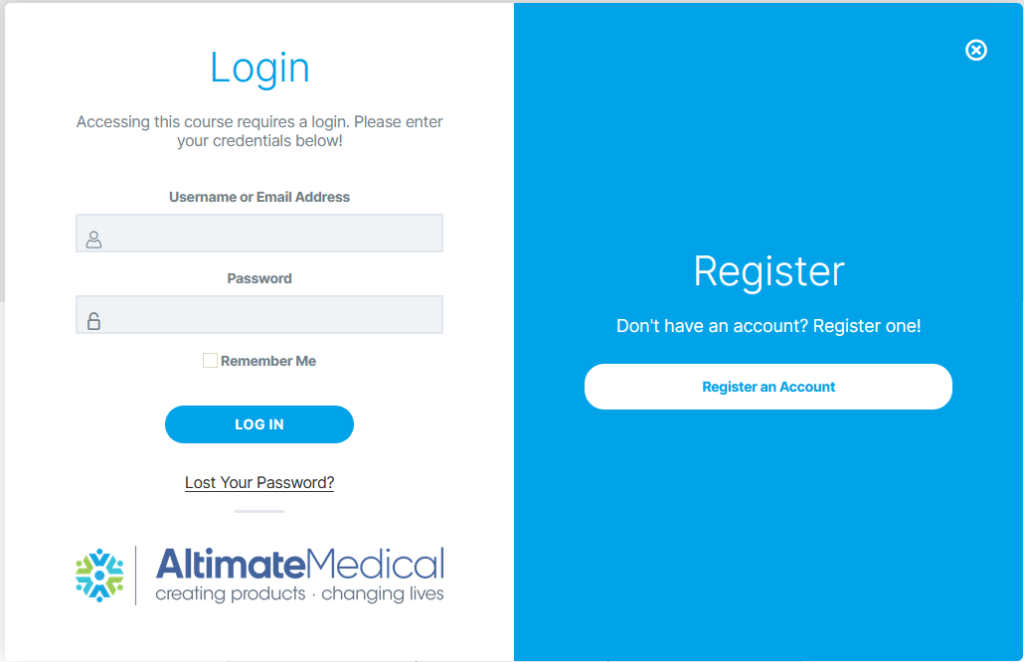
When you click the button above, you will be prompted to login or register for an account.
If you do not have an account, click the “Register an account” button, this will redirect you to a separate page to set a username, first and last name, email address, and set a password. You will be required to provide a first and last name, this is used by our website to display your name on the course certificate.
If you already have an account, simply enter the username and password that you set to register for an account. If you do not remember your password use the “Lost your password?” button to request a reset password link. If you do not remember the email address used to register for an account send us an email at education@altimatemedical.com with your first name, last name, and the last known email address you can remember and a member of our team will respond with the email address on file. If that email address is incorrect or you would prefer a different email address, feel free to let us know and we will update it for you.
Once you are logged in successfully, depending on your browser and operating system you may need to go back and click the survey link in the email we sent you.
Did you get logged in successfully? Yes? Awesome! You are one step closer to downloading your shiny new CEU. Use the “Enroll/Access Survey” button to access the survey content.
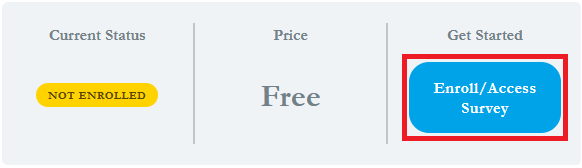
When you click the button above, the page will refresh automatically.
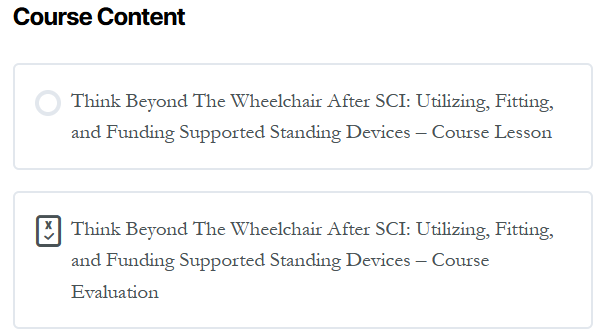
So now you are enrolled in the course and ready to take the survey, simply scroll to the bottom of the main course page to find the “Course Contents” section, there you will find the course survey, it should look like the photo below.
Once you have answered all of the survey and/or quiz questions, click the “Finish Quiz” button. This will take you to a page to download or print your certificate.
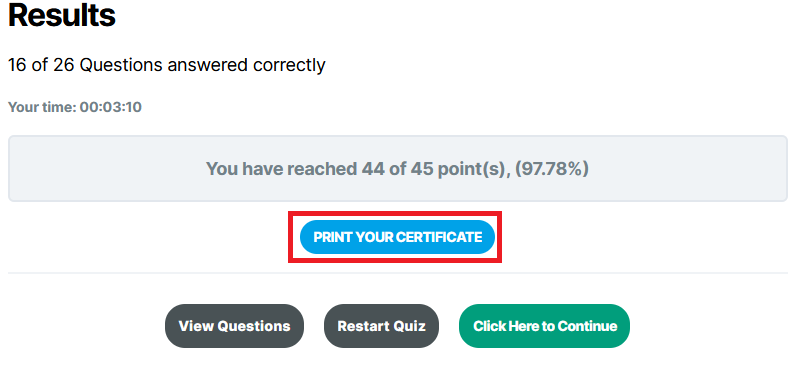
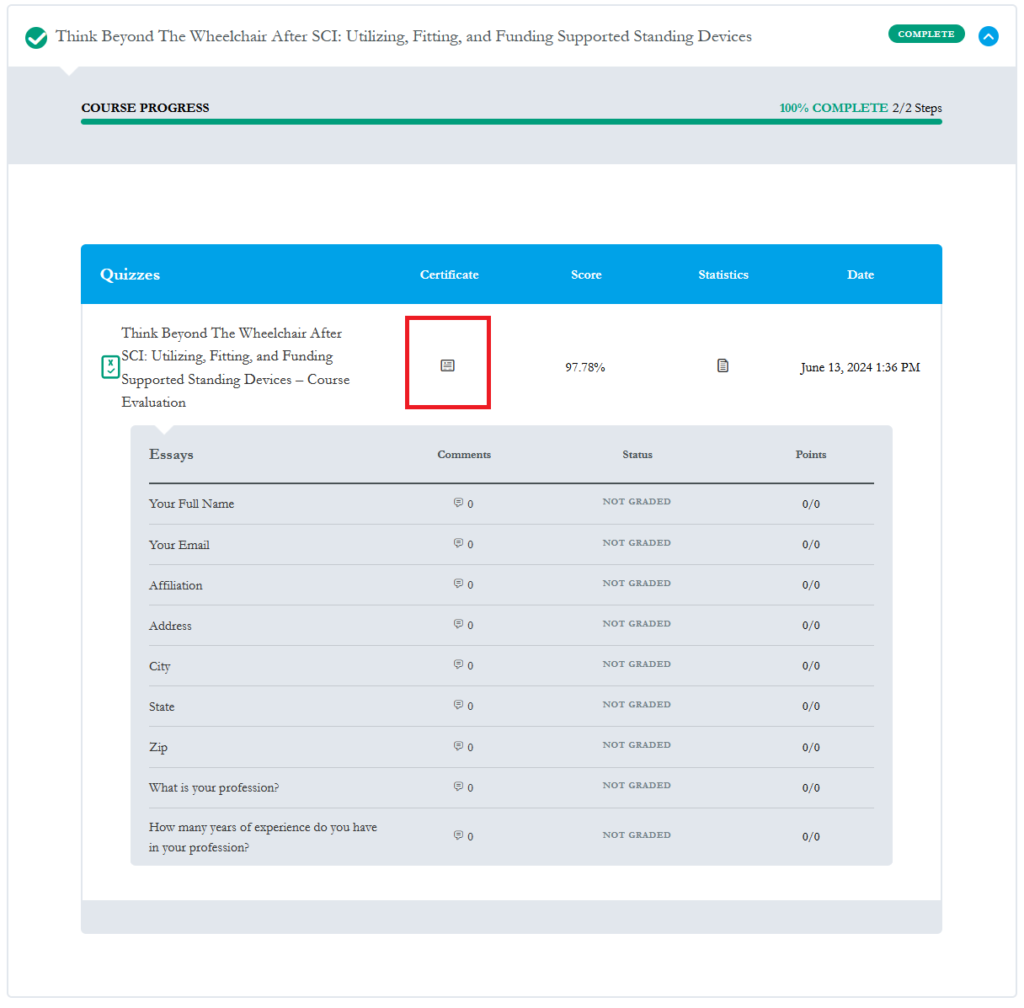
If you completed the survey but did not download or print your certificate and closed the page, do not worry. You can access your course history and your certificate at https://altimatemedical.com/profile/. Click the blue arrow on the right to expand the course information.

Once you have expanded the course information, you should be able to see the Quizzes attached to that course, your certificate, score, stats, and the date you completed the quiz. To access your certificate, click the button highlighted in the photo below.